

Apple Wallet has become one of the most practical features on an iPhone, bringing credit cards, debit cards, boarding passes, loyalty cards, transit cards, and even car keys into a single, secure digital hub. But as your wallet grows, so does the need to keep it organized and up to date — and that means knowing exactly how to remove a card from Apple Wallet when the time comes.
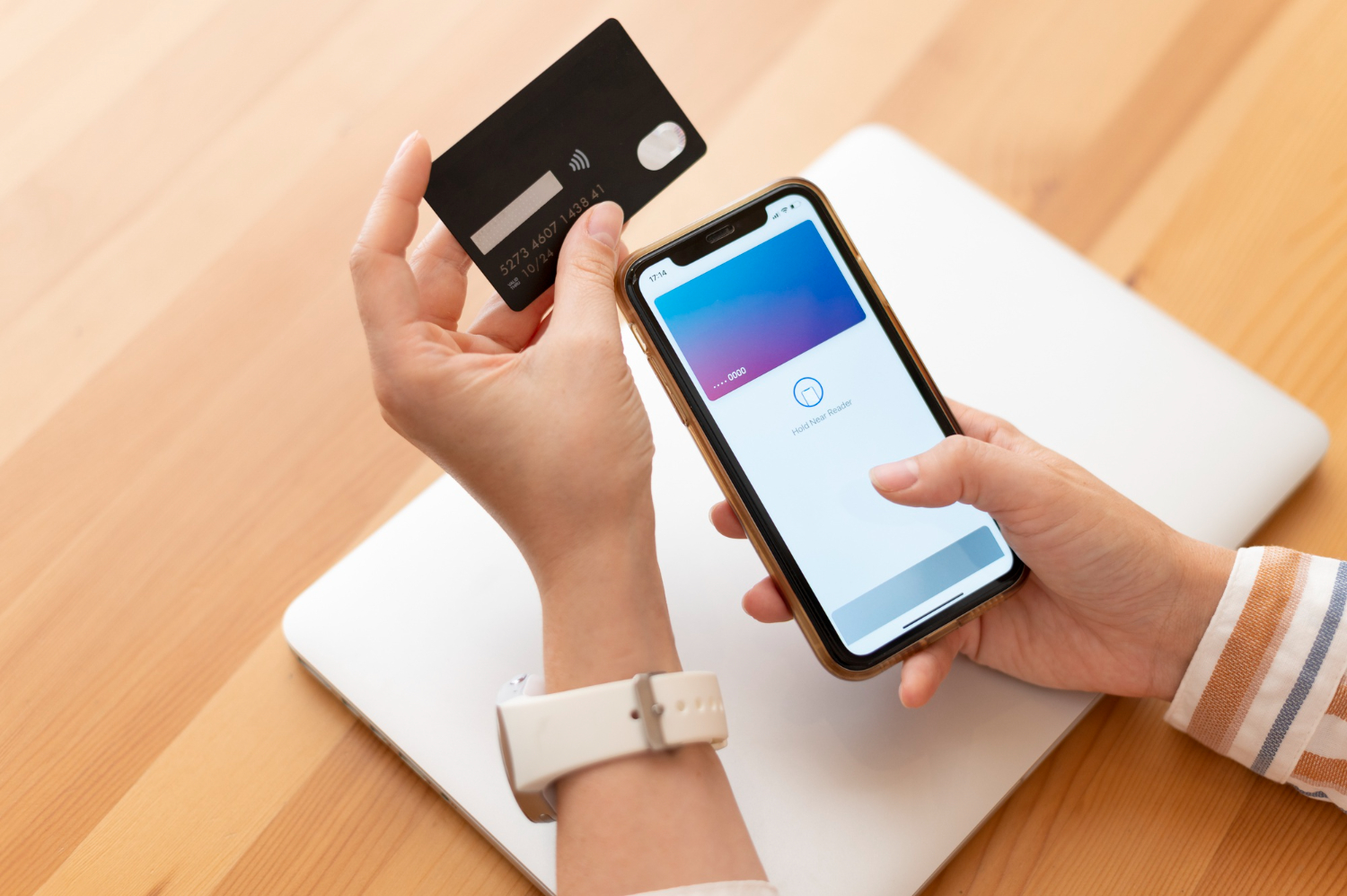
Image Source: freepik
Whether you’ve received a replacement card, closed an account, switched banks, or simply want to tighten up your digital security after a lost or stolen iPhone, removing a card from Apple Wallet is a task every iPhone user should know how to do quickly and confidently.
This guide covers every scenario in detail — from the standard iPhone method to removing cards remotely via iCloud, managing cards on Apple Watch, and handling specialty passes. By the end, you’ll have complete control over your Apple Wallet.
- 500M+Apple Pay users globally
- 85+countries with Apple Pay support
- 3 stepsto remove a card on iPhone
Why You Might Need to Remove a Card from Apple Wallet
Before jumping into the steps, it’s worth understanding the common situations where removing a card from Apple Wallet becomes necessary. This isn’t just about tidying up — in several cases, it’s a critical security action.
 Image source : freepik
- Your card expired or was replaced — Banks issue new cards periodically. While some update automatically via your bank app, others require manual removal.
- You lost your iPhone or it was stolen — Remotely removing cards protects your finances even if your device falls into the wrong hands.
- You closed a bank account — Keeping a closed account’s card in Apple Wallet serves no purpose and creates potential confusion.
- You’re selling or gifting your device — Always remove all payment cards before transferring ownership of any Apple device.
- Managing multiple cards — Removing unused cards reduces clutter and speeds up the checkout experience.
- Security concerns after a data breach — If your bank notifies you of suspicious activity, removing the card from Apple Wallet while you work with your bank is a smart precaution.
Security Note: Removing a card from Apple Wallet does not cancel the physical or virtual card itself — it only removes it from Apple Pay. Contact your bank separately to cancel or freeze a compromised card.
How to Remove a Card from Apple Wallet on iPhone (Step-by-Step)
The most common method is removing a card directly from your iPhone. This works for credit cards, debit cards, prepaid cards, and most other payment cards added to Apple Pay. The process is nearly identical on all iPhones running iOS 9 or later.
Method 1: Remove a Card Through the Wallet App
-
Open the Wallet appLocate the Wallet app on your iPhone home screen (the app icon looks like a stack of cards). Tap to open it.
-
Select the card you want to removeScroll through your cards and tap the one you wish to delete. It will come to the front of the stack.
-
Tap the three-dot menu (•••)In the top-right corner of the selected card, tap the three-dot icon (also described as the “More” button) to open card options.
-
Scroll down and tap “Remove Card”In the card detail screen, scroll to the bottom. You’ll see a red “Remove Card” option. Tap it.
-
Confirm the removalA confirmation popup will appear. Tap “Remove” to confirm. The card is now deleted from your Apple Wallet and can no longer be used for Apple Pay transactions on that device.
Pro Tip: On newer iPhones (iPhone XS and later), you can also access the Wallet by double-clicking the side button to open Apple Pay directly, then selecting the card for removal from within the payment interface.
Method 2: Remove a Card Through iPhone Settings
If the Wallet app method isn’t working, or if you prefer managing all your Apple Pay cards in one consolidated place, the Settings app provides an equally straightforward path.
-
Open SettingsGo to your iPhone’s main Settings app (the grey gear icon).
-
Tap your Apple ID / name at the topThis takes you to your Apple ID profile where all device and payment settings are centrally managed.
-
Select “Wallet & Apple Pay”You’ll see this option in your Settings — it shows all linked cards and payment methods.
-
Tap the card you want to removeSelecting a card shows its details, expiration, and management options.
-
Tap “Remove This Card”Scroll to the bottom and tap “Remove This Card,” then confirm in the prompt that appears.
How to Remove a Card from Apple Wallet on Apple Watch
If you use your Apple Watch for tap-to-pay, it maintains its own separate set of cards independent of your iPhone. Removing a card from your iPhone’s Wallet does not automatically remove it from your Apple Watch — you need to do that separately.
From Your iPhone (Watch App)
-
Open the Watch app on your iPhone. This is the companion app used to manage all Apple Watch settings remotely from your phone.
-
Select “Wallet & Apple Pay.” This section lists all payment cards currently active on your Apple Watch.
-
Tap the card you want to remove. Select the specific card, then scroll down and tap “Remove This Card.”
Directly on the Apple Watch
-
Open the Settings app on your Apple WatchTap the Settings icon (gear wheel) on your watch face.
-
Navigate to “Wallet & Apple Pay”Scroll down to find this option in the watch settings menu.
-
Select the card and tap “Remove”Tap the card, scroll to the bottom, and tap “Remove Card.” Confirm when prompted.
How to Remove a Card from Apple Wallet Remotely (via iCloud)
This is one of the most important features Apple offers for financial security: the ability to remotely suspend or remove your payment cards if your device is lost or stolen. You don’t need to have your iPhone in hand to do this.
Steps to Remove Cards via iCloud.com
-
Go to iCloud.com on any browserVisit icloud.com from any computer or device and sign in with your Apple ID credentials.
-
Open “Find My” or go to your Account settingsNavigate to your Apple ID account settings. Select the lost or stolen device from your list of Apple devices.
-
Select “Suspend Cards” or “Remove Cards”Under your device options, you’ll find the ability to suspend all Apple Pay cards on that device. This immediately prevents any payment from being made using Apple Pay on that iPhone or Watch.
Important: Suspending cards via iCloud is a temporary freeze — cards can be restored once you recover the device. If you know the device is permanently lost, use “Erase iPhone” which will permanently remove all cards and data from the device.
How to Remove a Card from Apple Pay on Mac
Macs with Touch ID also support Apple Pay for online purchases. If you’ve added cards to your Mac and want to remove them, here’s how.
-
Click the Apple menu (🍎) → System SettingsOn macOS Ventura and later, go to System Settings. On older macOS, go to System Preferences.
-
Select “Wallet & Apple Pay”This panel shows all payment cards associated with Apple Pay on this Mac.
-
Select the card and click the minus (–) buttonClick on the card you wish to remove, then press the minus button at the bottom of the card list to delete it.
-
Confirm removalClick “Remove” in the confirmation dialog. The card will no longer be available for Apple Pay on that Mac.
Removing Other Types of Passes from Apple Wallet
Apple Wallet isn’t just for payment cards. It also stores boarding passes, event tickets, loyalty cards, transit cards, hotel keys, and vaccination records. The removal process for these varies slightly by type.
| Pass Type | How to Remove | Notes |
|---|---|---|
| Boarding Pass | Open in Wallet → Swipe up → tap “Remove Pass” | Expired passes often remove automatically |
| Event Ticket | Tap ticket → swipe up → “Delete” | Verify ticket before removing |
| Loyalty Card | Open pass → tap ••• → “Remove” | Points are stored on issuer’s server, not the pass |
| Transit Card | Open Wallet → select card → Remove Card | Some transit cards need removal via issuer app |
| Student / Hotel Key | Tap pass → ••• → Remove Pass | Physical access is disabled upon removal |
| Car Key | Tap key → ••• → Remove Key | Also remove via car manufacturer’s app |
For most non-payment passes, the method involves opening the pass in Wallet, swiping up to reveal options (on older iOS) or tapping the three-dot menu (on newer iOS), and selecting the remove or delete option.
Expert Tips for Managing Your Apple Wallet Efficiently
Set a Default Card
If you have multiple cards in Apple Wallet, Apple Pay will default to whichever card you designate as the “Default Card” in Settings → Wallet & Apple Pay. After removing an old card, make sure your preferred card is set as the default to avoid delays at checkout.
Review Cards Before Traveling
Before any international trip, audit your Apple Wallet. Remove cards that have low limits or poor foreign exchange rates, and ensure your preferred travel card is at the front. This small step saves time and stress at international checkouts.
Add Cards Back Instantly
Removed a card by mistake? You can re-add it immediately by going to Wallet → the (+) Plus button → selecting your card issuer — or by logging into your bank’s app, which often has a direct “Add to Apple Wallet” button. Most banks re-activate the card in Apple Pay within minutes of verification.
Perform Periodic Wallet Audits
Every three to six months, open your Apple Wallet and review every card and pass. Expired loyalty cards, old boarding passes, and closed-account debit cards have no place in an organized, secure digital wallet.
Security Best Practice: If you switch phones, always erase your old iPhone (Settings → General → Transfer or Reset iPhone → Erase All Content and Settings) before handing it over. This automatically removes all Apple Pay cards from the old device without requiring manual deletion of each one.
Troubleshooting: What to Do When You Can’t Remove a Card
The “Remove Card” Option is Greyed Out or Missing
This occasionally happens when a card is in a verification or suspended state. Try signing out of your Apple ID in Settings and signing back in, then attempt the removal again.
Card Reappears After Removal
This usually means the card is syncing from iCloud to multiple devices. After removing the card on your iPhone, check your iPad, Mac, and Apple Watch to remove it from each device individually, or remove it via iCloud account settings.
Transit Card Won’t Remove
Some transit systems (like Suica in Japan or Octopus in Hong Kong) have special removal procedures. You may need to transfer your balance back to your transit account via the issuing authority’s app before removing the card from Apple Wallet.
Card Shows “Activation Required” and Can’t Be Deleted
Contact your bank or card issuer directly. Some cards in a suspended state may need to be addressed with the issuer before Apple Wallet can remove them successfully.
Frequently Asked Questions
No. Removing a card from Apple Wallet only removes the digital token used for Apple Pay transactions. Your physical card and the underlying bank account remain completely unaffected. You can still use your physical card for in-store and online purchases as normal.
To actually cancel a card, you need to contact your bank or card issuer directly via their app, website, or customer service number.
Not automatically. Apple Watch maintains its own independent set of payment cards. If you remove a card from your iPhone’s Wallet, you must also remove it from your Apple Watch separately. You can do this via the Watch app on your iPhone under “Wallet & Apple Pay,” or directly from the Settings app on your Apple Watch itself.
The exception is when you erase your iPhone entirely — this will typically remove Apple Pay access across linked devices as well, particularly if the iPhone is your paired device for the Watch.
Yes — and you should do so immediately. Visit icloud.com from any browser, sign in with your Apple ID, and go to your device settings. From there, you can suspend all payment cards on your lost device with a single action. This prevents any Apple Pay purchases from going through on that device.
For a device that is confirmed lost or stolen permanently, using the “Erase iPhone” option in Find My will wipe all data including all Wallet cards, providing maximum protection. Note that erasing is irreversible unless you have a backup.
No. Your rewards points, cashback balances, and other card benefits are managed entirely by your card issuer, not by Apple. They are stored on your bank or credit card company’s servers, completely separate from Apple Wallet. Removing the card from Wallet has zero effect on any accumulated rewards.
If you re-add the same card to Apple Wallet later, all your benefits will still be intact and functional.
Apple Wallet has a built-in setting that automatically removes expired passes. To enable or check this, go to Settings → Wallet & Apple Pay and look for the “Automatically Remove Expired Passes” toggle. When this is on, passes that have passed their expiration date — including boarding passes, event tickets, and coupons — will be removed without requiring any manual action.
If you want to keep certain passes (like a sentimental concert ticket), turn this setting off, or simply leave it on and manually save any passes you want to keep as screenshots before they expire.
Conclusion
Knowing how to remove a card from Apple Wallet is a fundamental skill for any Apple user who takes both digital organization and financial security seriously. Whether you’re decluttering after closing an old account, preparing a device for resale, or acting quickly after a phone goes missing, Apple gives you multiple ways to manage your Wallet — on-device, remotely via iCloud, and across every Apple product in your ecosystem.
The process is deliberately simple: a few taps, a confirmation, and the card is gone. But the implications — protecting your finances, maintaining a clean and functional digital wallet, and staying in control of your data — are significant. Make it a habit to review your Apple Wallet regularly, just as you would a physical wallet.
With the steps, tips, and troubleshooting guidance in this article, you have everything you need to manage your Apple Wallet with confidence.
